Blending Blender and Photoshop for Painterly stars wars Digital Art
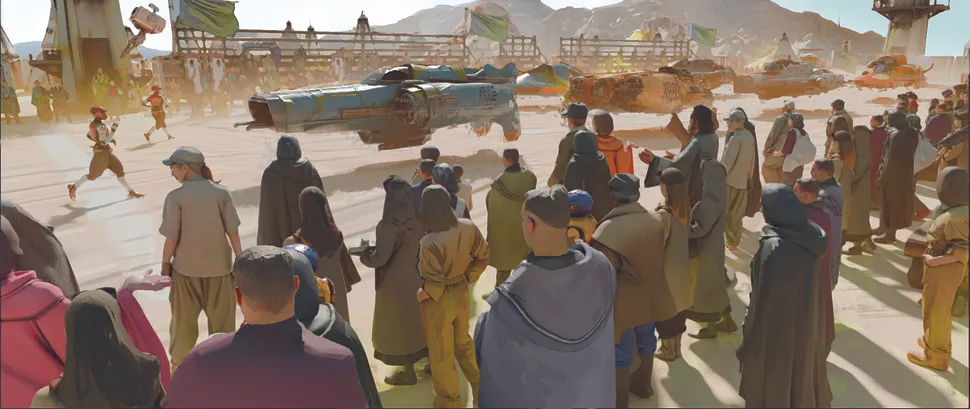
Creating painterly digital art combines the precision of 3D with the flexibility of 2D painting. I start in Blender, using add-ons like HardOps and Node-It to speed up the workflow.
The process begins with blocking out the scene: setting composition, choosing a main light source, and adding atmosphere for realism. I take multiple screenshots, including a solid “clown pass,” which helps with masking later in Photoshop.
Once the scene is set, I switch to Photoshop to add textures, paint over renders, and enhance details.
Tools like the Dry Brush filter help soften the 3D appearance, giving it a painterly quality, while Hue/Saturation adjustments refine the color balance.
I often cycle between Blender and Photoshop—adding new assets in 3D, capturing fresh screenshots, and painting over them to enhance depth and realism.
For finishing touches, I merge layers and apply a High Pass filter on Hard Light, Overlay, or Soft Light at about 35% opacity to sharpen key areas.
The goal is to balance realism with artistic expression, turning a 3D scene into a visually engaging digital painting.
Pro Tip: Mastering shortcuts and add-ons in both Blender and Photoshop will save time and improve creativity.
Using this workflow, you can create unique digital art that blends the best of 3D modeling and traditional painting techniques.